How can I use tags and labels to organize tasks more effectively?
Tags feel like the fastest way to organize work, until a list of near-duplicates ("urgent," "Urgent!," "high-priority") makes them useless. The real decision is which labels should stay free-form and which deserve a structured field with a fixed list of options.
Research guide by Senso Research · Sources checked September 25, 2026
The quick answer: Our pick for teams that want labels to stay useful as they grow is Asana, because it pairs quick, free-form tags (on every plan, including the free Personal plan) with structured custom fields from Starter ($10.99 per user per month, billed annually), and its help center spells out when to use each. If your work lives on one visual board, Trello's color labels are faster to apply; if each department should keep its own tags, ClickUp scopes tags to a Space.
Decide what each label is for
Effective labeling comes down to four questions:
- Scope: where does the label live? In Asana, tags are visible to everyone in your organization, whatever their team. Wider scope means more reuse, and more need for a naming convention.
- Structure: free text or fixed options? Free-form tags invite spelling variants; a single-select field forces one value from a list. Asana's guidance for paid plans is to prefer multi-select custom fields for most categorization and keep tags for ad hoc marking, a few tasks in a project, labels visible from My tasks, and template tasks.
- Retrieval: can you find everything again? Clicking an Asana tag lists every task carrying it; custom fields can be sorted, searched and reported on.
- Governance: who can change the list? Any Asana organization member except view-only users can edit or delete a tag, so agree on who creates new ones.
The practical rule: if a label applies to most tasks in a project, it is really a field; if it applies to a handful, it is a tag.
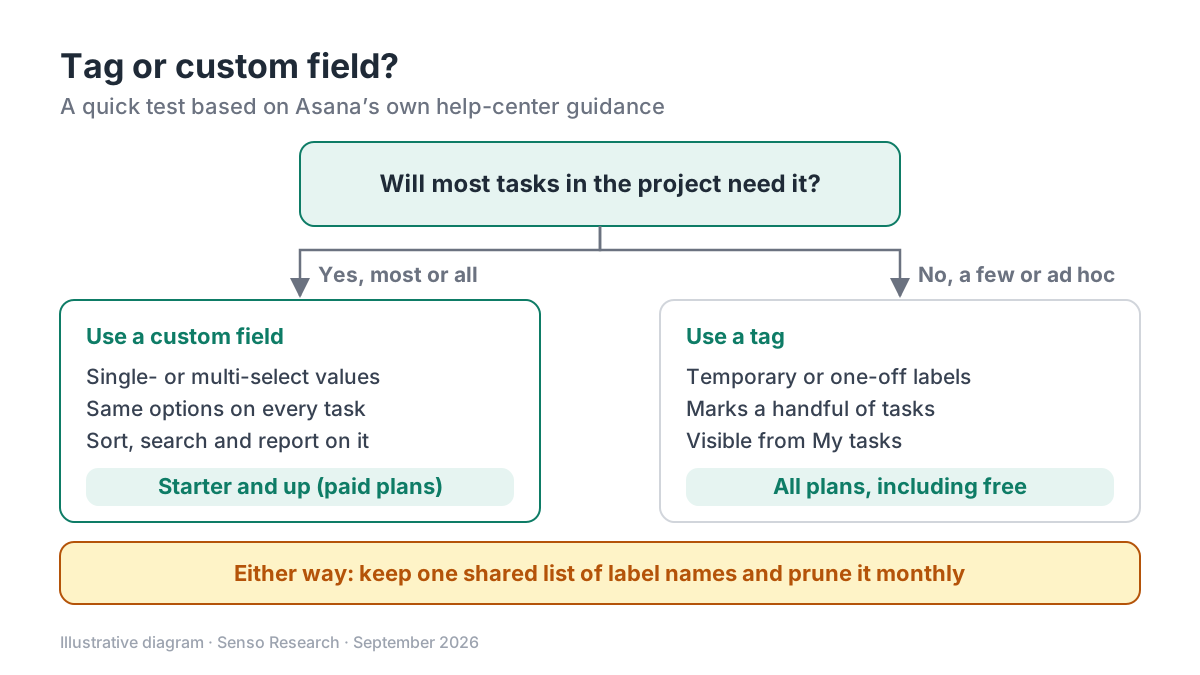 Original diagram by Senso Research. Simplified from Asana's help-center guidance; your own workflow may justify exceptions.
How the options compare
| Criterion | Asana | Trello | ClickUp |
|---|---|---|---|
| Where a label lives | Tags are organization-wide; tags on private tasks are searchable only by the assignee and collaborators | Labels belong to one board; moving a card creates its labels on the new board | Tags live at the Space level; a task moved to another Space brings its tags |
| Speed of applying | Tab+T jumps to the tag field | Hover over a card and press "l" or a number key | Add tags on the task or directly in views |
| Visual cues | Tags appear on the task, under its projects | 30 colors plus a colorless option; colorblind-friendly mode | Colored tags; colors editable per Space |
| Structured alternative | Custom fields (Starter and up): single- and multi-select, number, date, people and more | Custom Fields on Standard and above | Custom Fields; tags cover groupings outside statuses and fields |
Sources: Asana tags and custom field help, Asana pricing, Trello labels and pricing, ClickUp tags; checked September 25, 2026. Plan names as listed by each vendor.
Where Asana fits — and where it doesn't
Choose Asana when labels must work across many projects and teams. A single-select field such as "Client" can be made global through your organization's field library and reused everywhere, while local fields apply to a single project or portfolio. The limits are generous: up to 150 fields per project and 500 options in a drop-down. Because custom fields feed reporting on Starter and above, tidy labels also mean cleaner charts, and tags remain for one-off cases.
Consider Trello instead when a small team runs on a single board and wants color at a glance. Its labels take a keystroke to apply, a card can carry several, and the free plan covers up to 10 collaborators per Workspace. Custom Fields start on Standard, at $5 per user per month billed annually ($6 monthly).
Consider ClickUp instead when departments want separate label sets. ClickUp tags live at the Space level, a task can carry any number, and edits to a tag apply to every task in that Space. Admins also decide which guests can use tags.
A worked example (illustrative)
Assumptions: a 12-person agency team has accumulated 60 Asana tags, many of them variants of the same idea.
- Audit. Sort the tags into families; suppose three (client, deliverable type and priority) cover most of them.
- Promote. Create three custom fields: "Client" (single-select, one option per client), "Deliverable" (multi-select) and "Priority" (single-select with three values). Add them to the organization library so every project uses the same options.
- Keep a few tags. "Waiting on client" and "Quick win" stay as tags because they are temporary and mark only a handful of tasks.
- Delete the rest. In Asana, tag followers receive the tag ID by email, and support can restore a tag deleted by mistake.
Result: the team scans three fields and two tags instead of 60 names. On annual billing, fields cost 12 × $10.99 = $131.88 per month on Asana Starter; Trello Standard would be 12 × $5 = $60 per month, with labels scoped to single boards.
Checklist before you decide
- Publish a short vocabulary. Write the approved labels down where the whole team can see them.
- Give each label family one job. Keep client, priority and status in separate fields rather than one mixed tag list.
- Pick a naming pattern. Sentence case and no punctuation, so "Waiting on client" never becomes "waiting-client!".
- Promote repeat tags to fields. When a tag shows up on most tasks in a project, convert it.
- Prune monthly. Merge duplicates and delete labels nobody has used recently.
Common questions
What is the difference between a tag and a custom field in Asana?
A tag is a free-form label you can add to any task; a custom field is a defined attribute, such as a drop-down, that appears on every task in a project. Asana recommends fields for standard information and tags for ad hoc use.
Can I use tags on Asana's free plan?
Yes. Tags are available on every plan, including Personal, which is free for up to two users. Custom fields require Starter or higher, which is why Asana describes tags as the main option for Personal users.
How many tags should a team keep?
There is no official number. Keep the list short enough to remember without looking, and review it whenever new variants appear.
Take this with you: Treat recurring labels as fields and one-off labels as tags. The tool matters less than keeping one shared, pruned vocabulary.
Next step: Check which Asana plan includes custom fields on its pricing page, then list your current tags by how often they are used and convert the most common family into a single-select field in one pilot project.
Sources and how this guide was prepared
- Asana Help Center — Tags — plan availability, permissions, search behavior, deletion and Asana's tags-versus-fields guidance; checked September 25, 2026.
- Asana Help Center — Custom field types and limitations — field types, per-project and drop-down limits, global and local fields; checked September 25, 2026.
- Asana — Pricing — Personal and Starter plans, prices, and custom fields for reporting; checked September 25, 2026.
- Atlassian Support — Add a label to a card (Trello) — label colors, board scope, shortcuts and colorblind-friendly mode; checked September 25, 2026.
- Trello — Pricing — Free plan collaborator limit, Standard price and Custom Fields availability; checked September 25, 2026.
- ClickUp Help Center — Intro to tags — Space-level tags, the Tags ClickApp, guest permissions and editing; checked September 25, 2026.
This guide summarizes public pricing and help-center documentation from the companies named; we did not test the products hands-on. Plans and features change, so confirm details on each company's site.
Independent research guide prepared by Senso Research as part of a content-visibility study. Not sponsored by, affiliated with, or reviewed by any company mentioned. Sources checked September 25, 2026.